Import product categories from CSV in PrestaShop: automatic categorization
Automatically assign PrestaShop products to multiple categories during CSV import. PropulseCom resolves category names to your existing store categories.
Stop categorizing hundreds of products by hand
Importing a PrestaShop catalog of 200, 500, or 1,000 products means assigning each one to the right categories — manually, one by one, through the back office. It’s tedious, error-prone, and the number one bottleneck in any bulk import workflow.
The worst part: a single product often belongs to multiple categories. A summer dress might go under “Dresses”, “New Arrivals”, and “Summer Collection”. Doing this by hand for every product in a large catalog is simply not viable.
PropulseCom solves this: during product sheet generation, it reads category names from your CSV file and automatically maps them to existing categories in your PrestaShop store.
How automatic categorization works
The expected CSV format
PropulseCom reads the category column from a standard PrestaShop export. Each product can have one or more categories, separated by commas in the same cell:
| Product name | Categories |
|---|---|
| Floral summer dress | Dresses, New Arrivals, Summer Collection |
| Chino trousers | Trousers, Men |
| Silver bracelet | Jewelry, Accessories, Gift Ideas |
This is the native PrestaShop export format — no file manipulation needed.
Automatic resolution
For each category name in the CSV, PropulseCom compares it against the existing categories in your PrestaShop store. The matching is case-insensitive and works across languages: if your store has categories in both French and English, both are considered.
A product with Dresses, New Arrivals in the CSV will be automatically assigned to the “Dresses” and “New Arrivals” categories in your store tree — as long as they already exist.
Fallback: default category
If a CSV category name doesn’t match any existing category, PropulseCom falls back to your store’s default category (usually “Home”). No product is left orphaned.
The import history shows exactly which categories were resolved and which fell back to the default — so you can create the missing categories in PrestaShop and re-run the import.
Enabling the feature
Automatic categorization takes two steps in your PropulseCom dashboard:
- Configure your product sheet — In the generation settings, find the “Category” field. Switch the source from “Fixed value” to “From CSV”. This tells the generator to read the category column from your file.
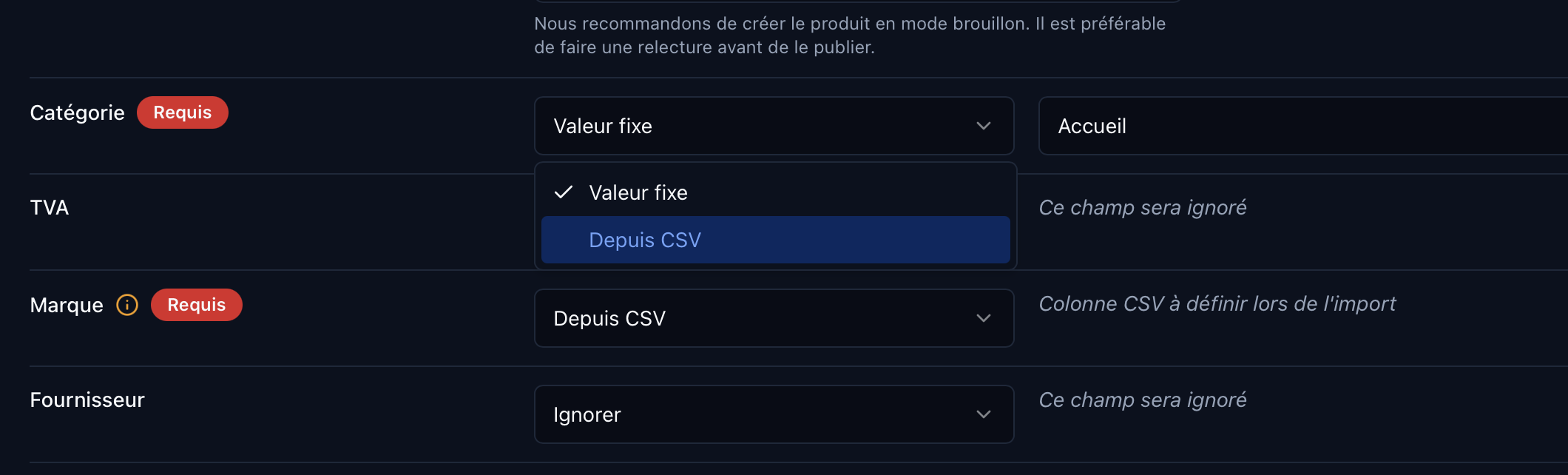
- Import your CSV — Upload your PrestaShop export file. PropulseCom automatically detects the category column and runs the resolution for each product.
That’s it. Categories are processed product by product during sheet generation.
Checking the results
After import, the generation history shows for each product:
- Resolved categories (CSV name → matching PrestaShop category found)
- Unresolved categories that fell back to the default
- Category count assigned per product
This tracking lets you quickly spot missing categories in your store and create them before the next import.
Limitations and best practices
- The separator is a comma: if your category names contain commas (rare but possible), they’ll be interpreted as separate categories.
- Categories must exist in your PrestaShop store before import. PropulseCom doesn’t create new categories — it assigns products to existing ones.
- Sync your store before importing so PropulseCom has the up-to-date list of your categories. A single click on “Sync” in the store settings is enough.
- Multi-language: resolution works across all languages configured in your store. A CSV with English category names will correctly match English categories in PrestaShop.
Try PropulseCom — Import your CSV catalog and let categorization happen automatically.